
Manual / Events & ticketing / Access control with the Scanner
Part 6 of 9, Events and ticketing
Access control with the Scanner
With the Scanner you check tickets and season tickets at the entrance. Every ticket has a unique QR code; after scanning you immediately see whether the visitor may enter. There are three devices, each with its own app:
- Your phone (Mobile Scanner): scans with the camera. Handy for smaller events or as an extra entrance. See Scanning with your phone.
- A Sunmi handheld scanner: a device with a built-in scanner, faster with many visitors.
- A Zebra handheld scanner: works like the Sunmi. See Scanning with a Sunmi or Zebra handheld scanner.
What does the result mean?
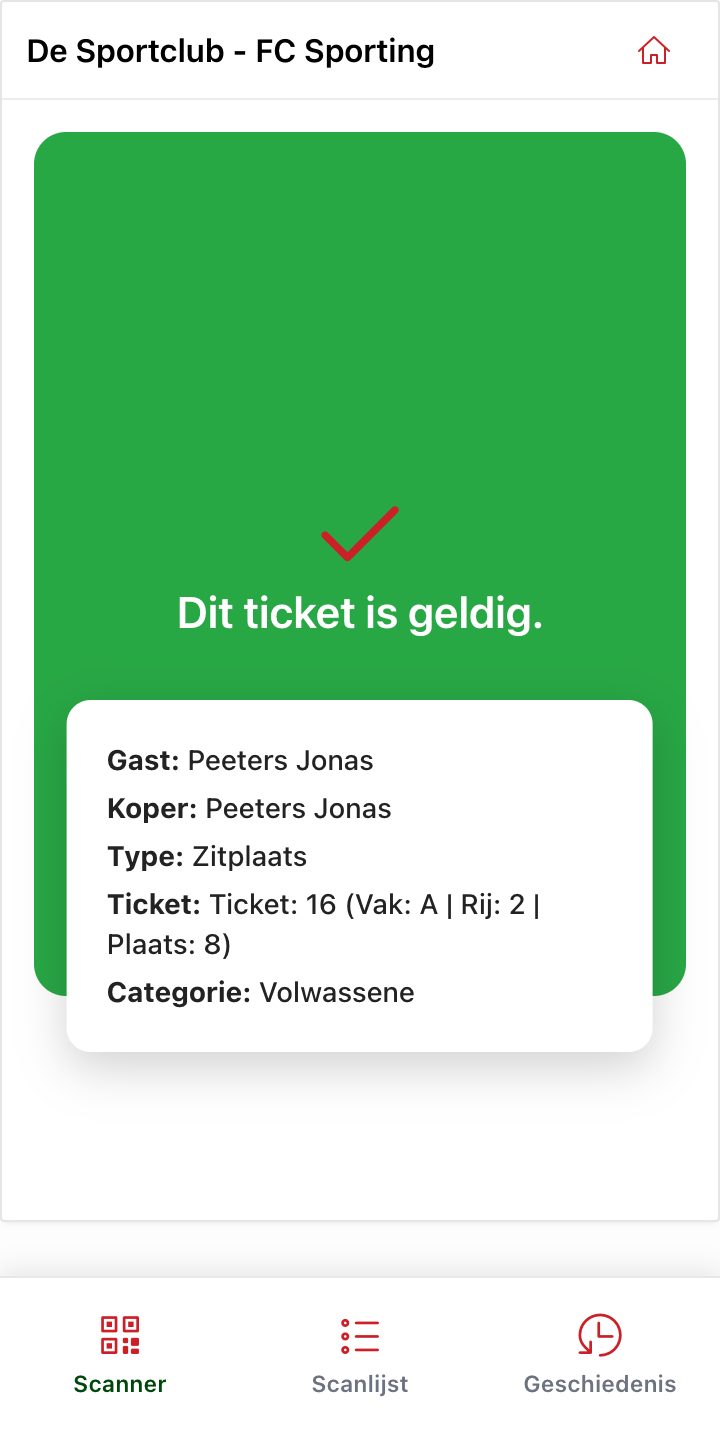
- Green – This ticket is valid. You see the guest, the buyer, the ticket type, the seat (section, row, seat) and the price category.
- Yellow – This ticket has already been used. This ticket was already scanned before: the visitor is already inside, or the ticket was forwarded.
- Red – Not a valid ticket. Unknown code, a ticket for another event, or a ticket that is not (or no longer) valid, for example unpaid or cancelled.
Scan list and history
At the bottom of every scanner app there are three tabs: Scanner, Scan list and History.
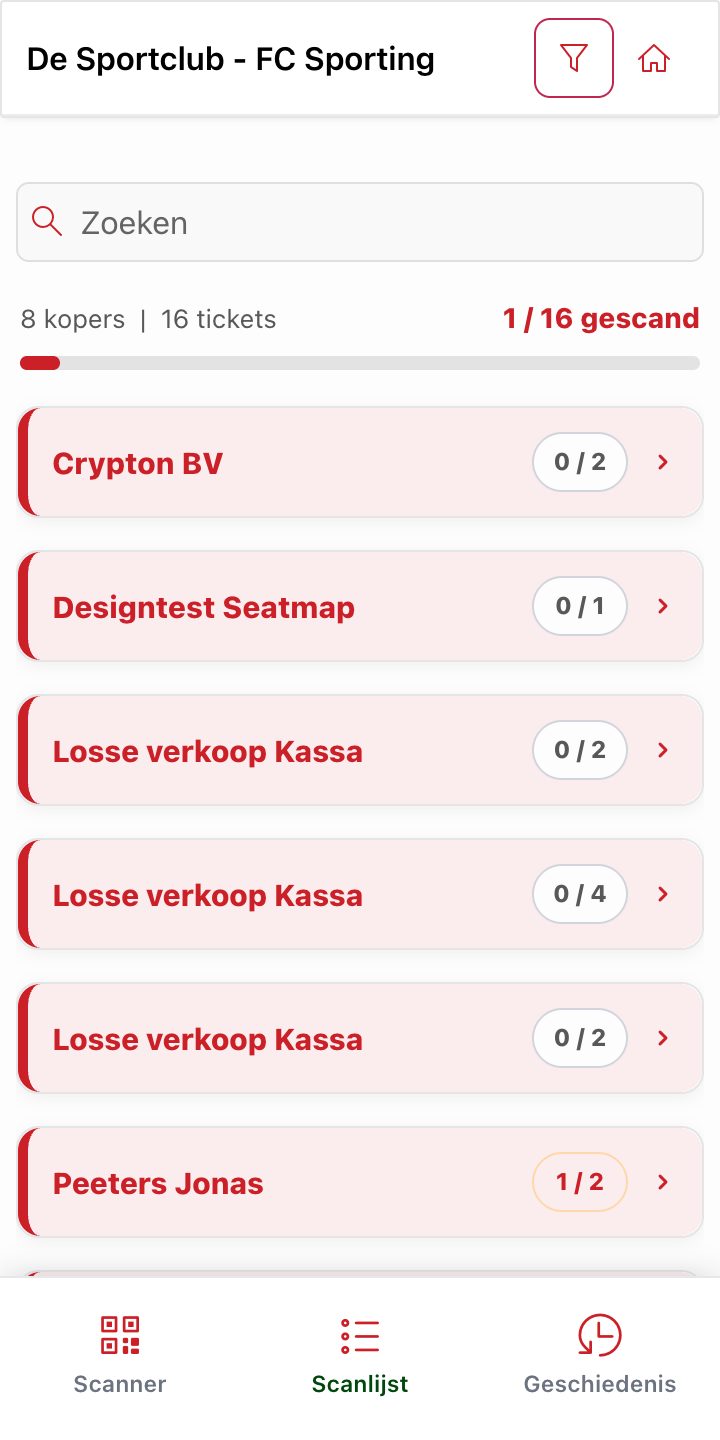
- The Scan list shows all buyers with how many of their tickets have already been scanned, and the total at the top (e.g. "1 / 16 scanned"). Search by name to find someone quickly.
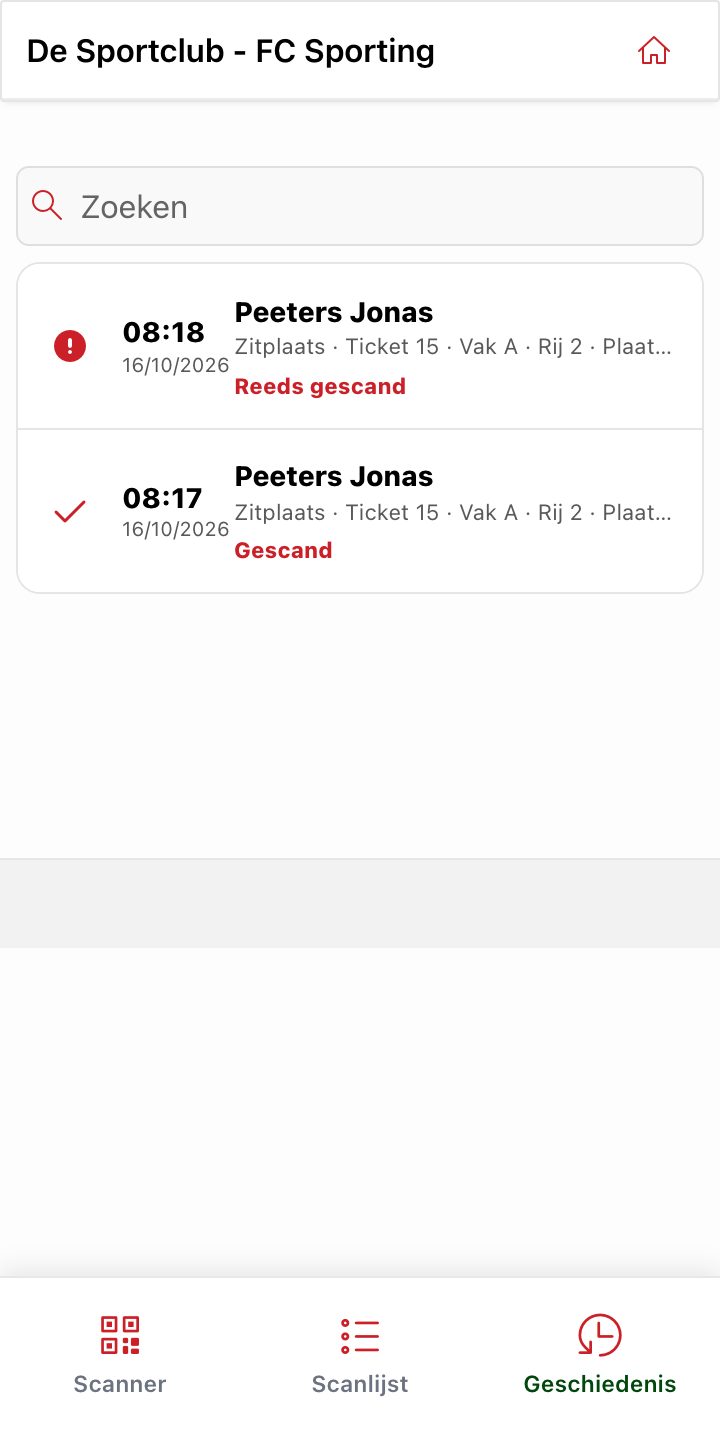
- The History shows every scan with the time and the result, including attempts with a ticket that had already been used.
Tip: all devices share the same data. A ticket scanned at one entrance immediately shows as "already used" at the other entrance.
Did this answer your question?
Thanks for your feedback!