
Selling with the Box office
The Box office is the sales tool for the desk or the entrance, made for a laptop or tablet. You choose an event, sell seats, hospitality or season tickets, take payment and print the tickets right away. The Box office and the Ticket App sell from the same seats at the same time: a seat can never be sold twice.
Opening the Box office
Open the Box office via the tile Box office on the back office dashboard. You don't have to sign in again. You need the right Box office is needed; ask your club's administrator for it.
1. Choose an event
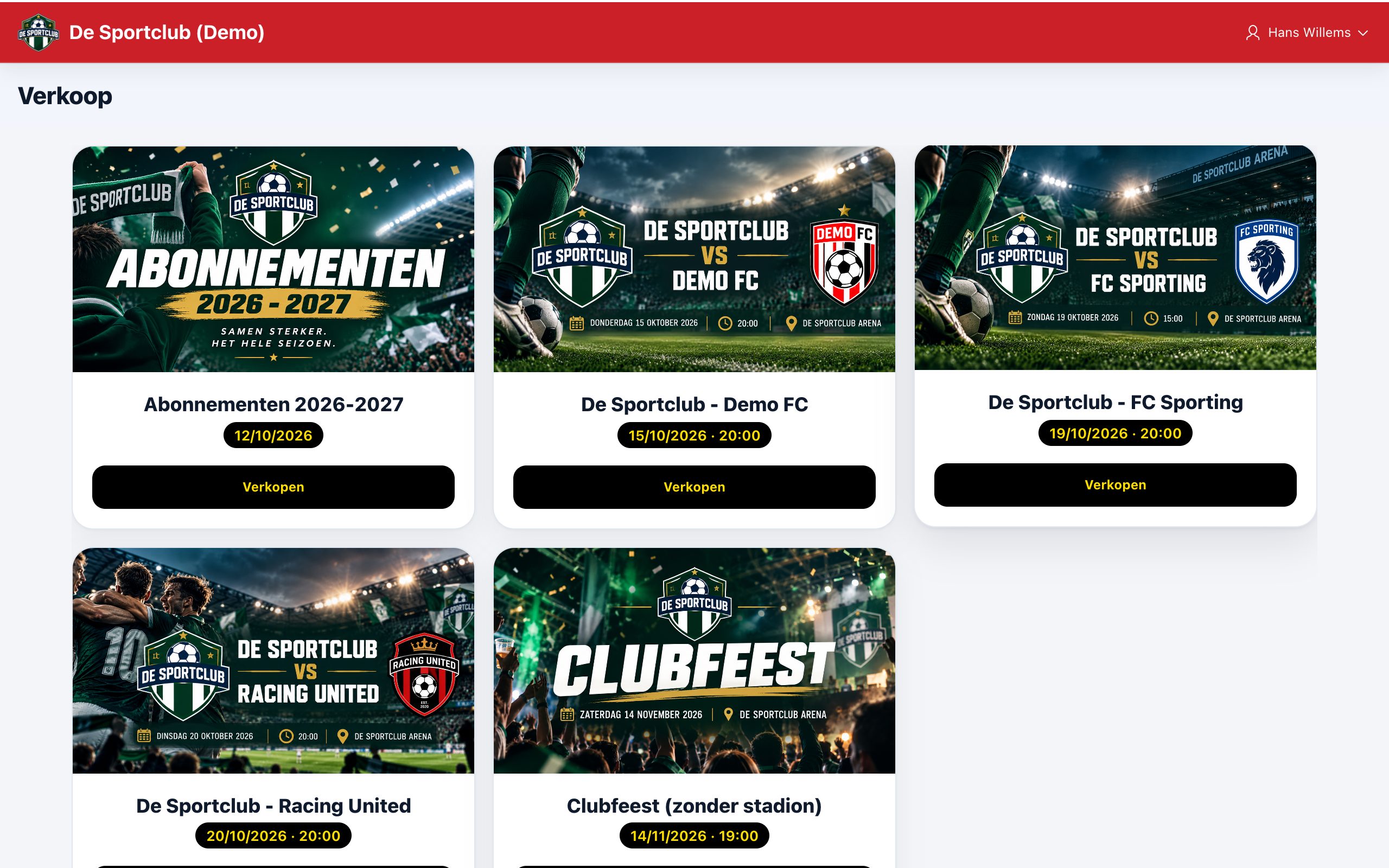
The start screen shows all events your club sells, with the event that ends first at the top. Tap the event you want to sell for.
2. Choose the tickets
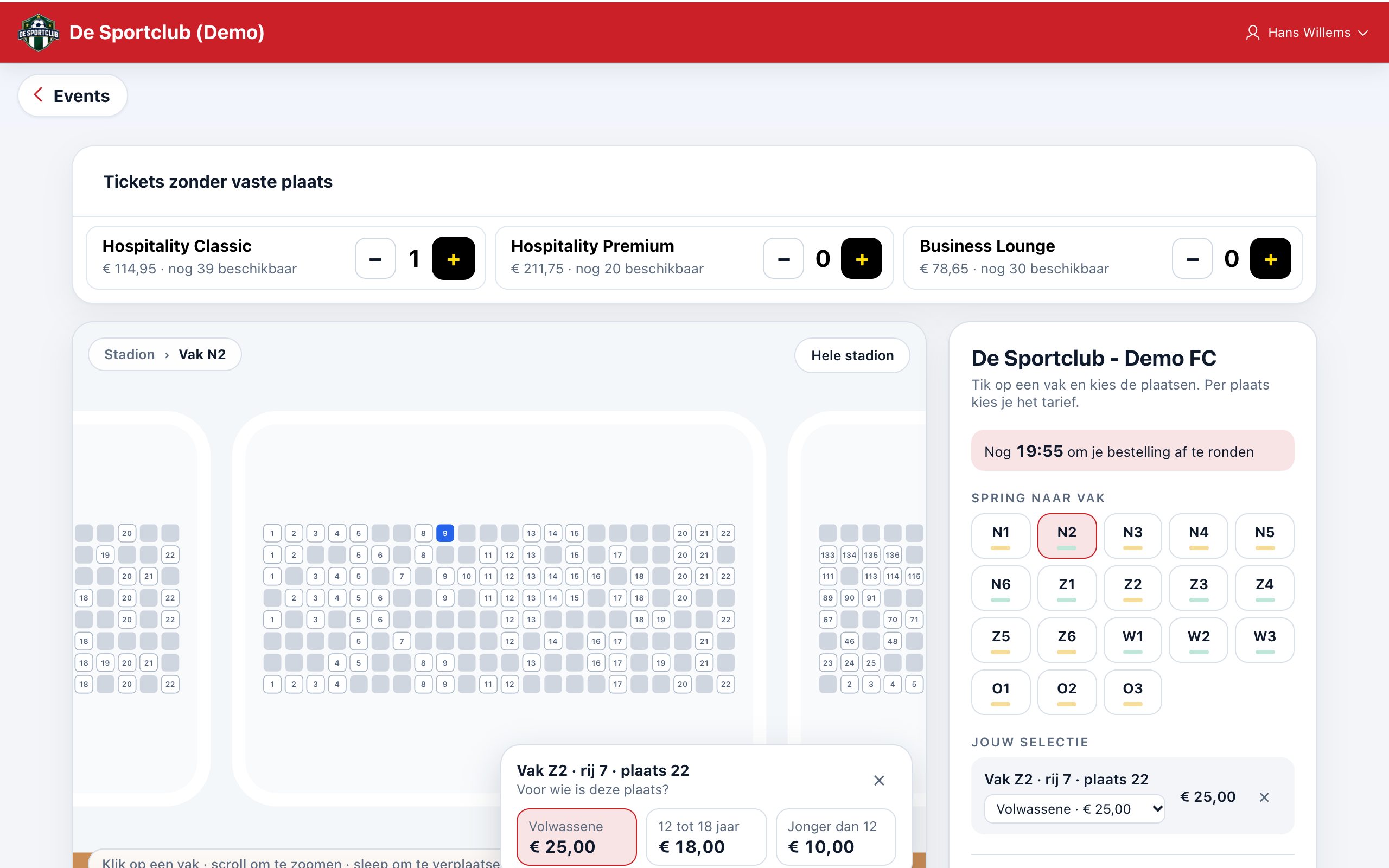
- Tickets without a fixed seat (e.g. hospitality) are shown as tiles at the top. With + and − you choose the quantity; you also see how many are still available.
- Seats you choose on the seating plan: tap a section, then a free seat, and choose the price category (e.g. adult or youth).
- Internal places and rates, such as wheelchair places or invitations, are sold only at the Box office. They are not for sale in the Ticket App: an internal place shows as taken there.
- On the right you see your selection and the total. A selected seat stays held for you for 20 minutes.
Then tap Checkout.
3. Checkout
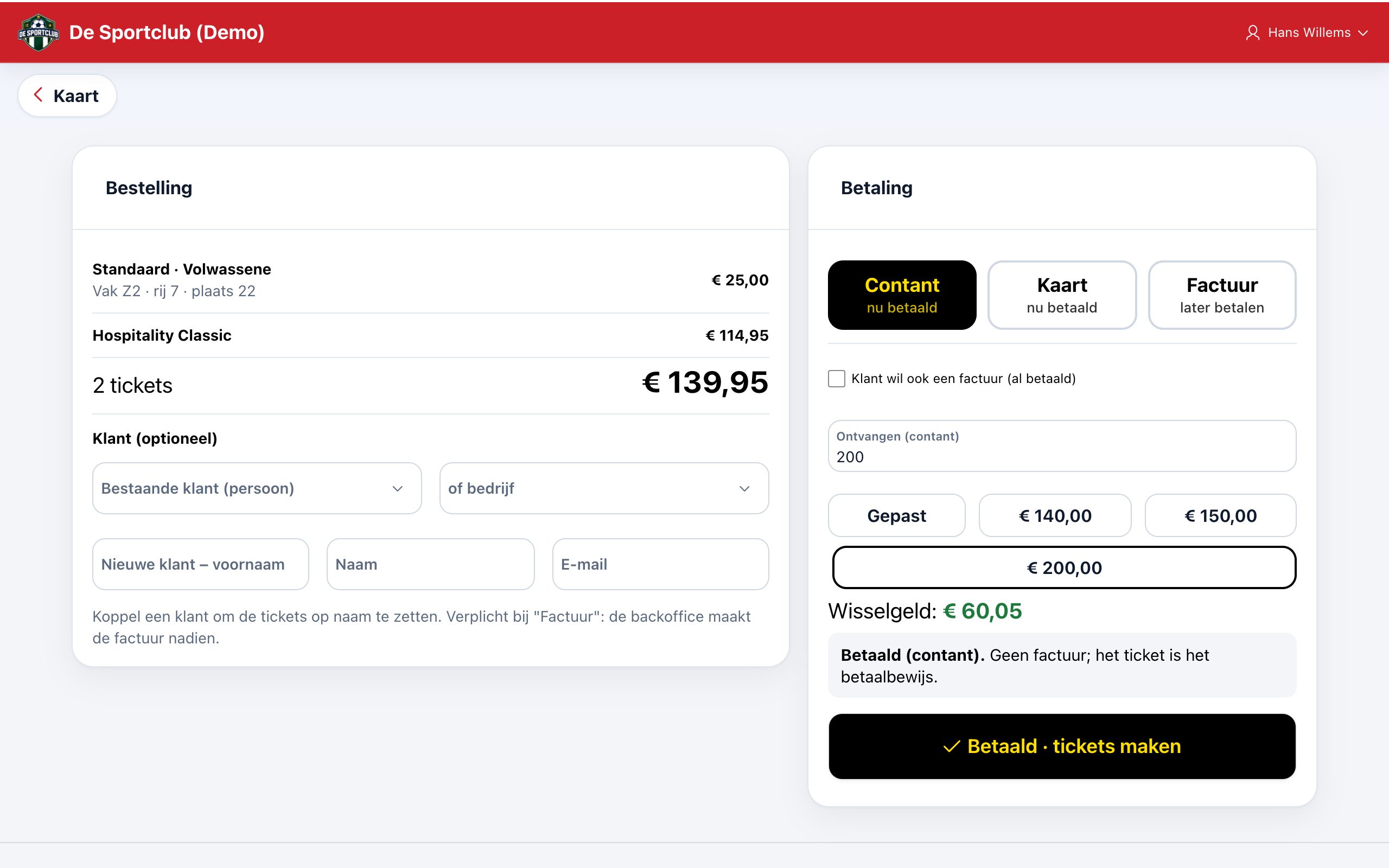
Choose how the customer pays:
- Cash: enter the amount received, or tap a quick button (exact, or rounded up to a banknote). The Box office immediately shows the change.
- Card: the customer pays with the club's payment terminal.
- Invoice: the customer pays later; the back office creates the invoice afterwards. For this you must link a customer.
If a customer who has already paid still wants an invoice, tick Customer also wants an invoice . The line above the pay button always says what is going to happen.
Linking a customer
Linking is optional, except for an invoice or a season ticket. Choose an existing person or company, or enter the first name, last name and e-mail address of a new customer. Without a customer, the tickets go on a general box office sale.
4. Print tickets
After payment the tickets are ready, each with a QR code for the scanner at the entrance. Tap Print tickets: each ticket on a separate sheet, or on an 80 mm receipt printer.
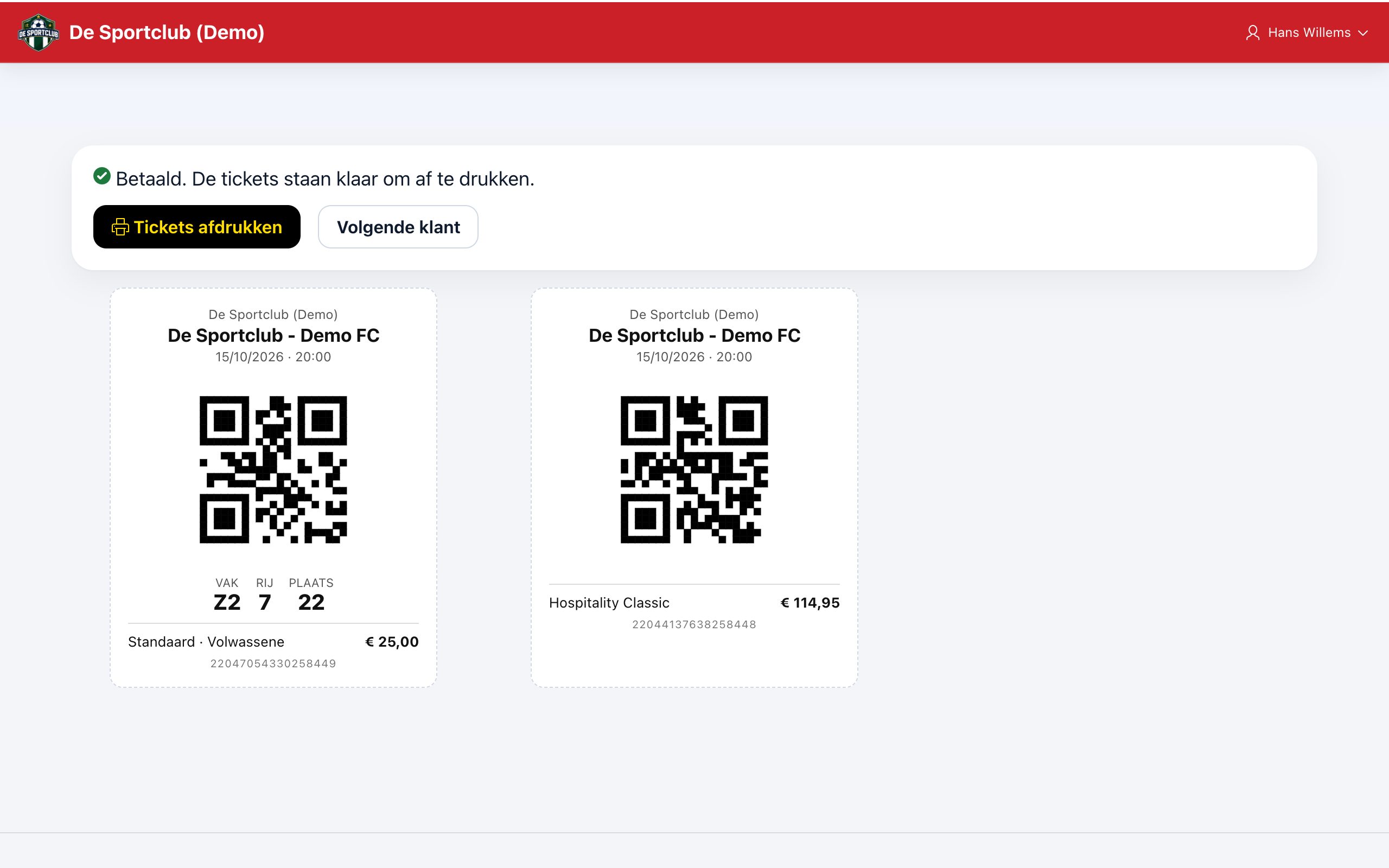
Tap Next customer to start again. Seats that were still being held are released right away.
Selling season tickets
On the start screen, choose the season ticket sale. You choose the fixed seat on the same seating plan, with a price per seat. For a season ticket a customer is required: the season ticket is in their name.
Did this answer your question?