
Scanning with a Sunmi or Zebra handheld scanner
For events with many visitors it's best to use a handheld scanner. Clubwise works with Sunmi and Zebra devices, each with its own app. The scan screen is different from a phone: there is no camera image, you scan with the device's button.
Sunmi
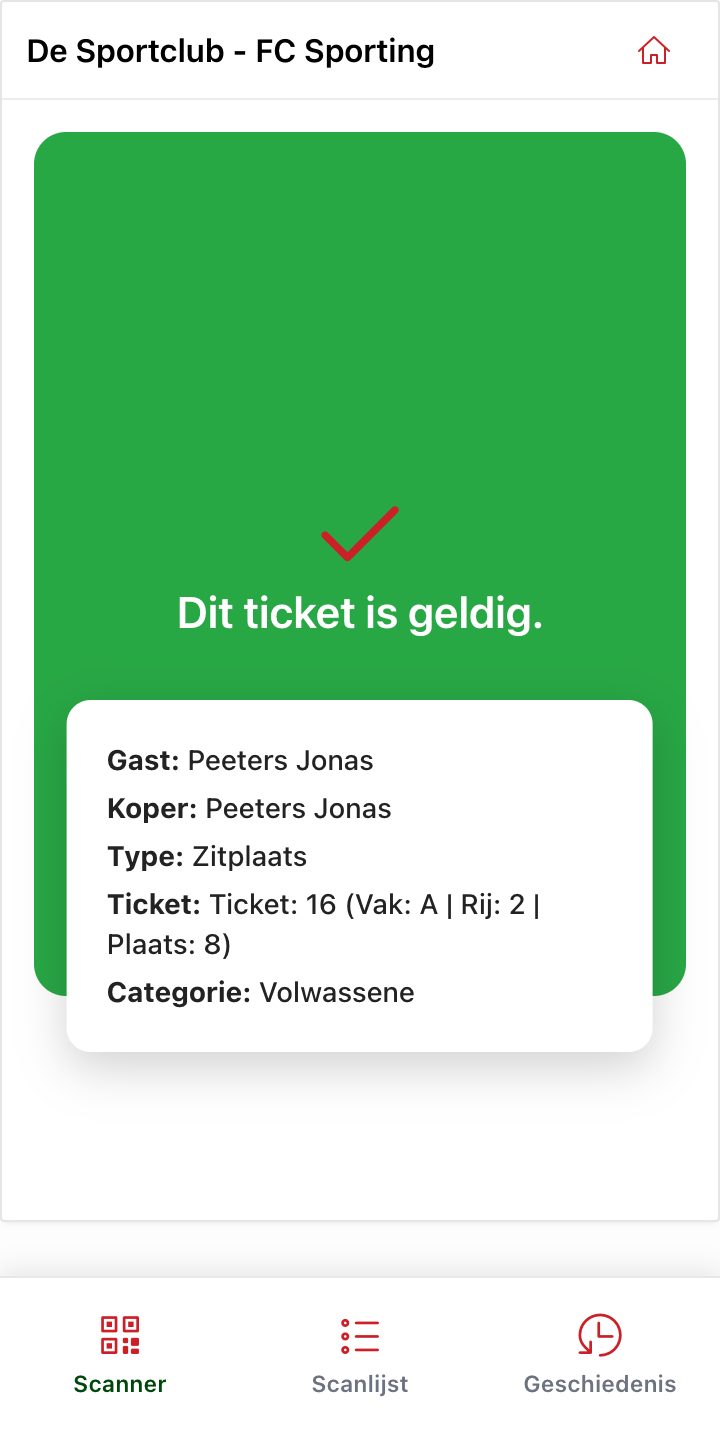
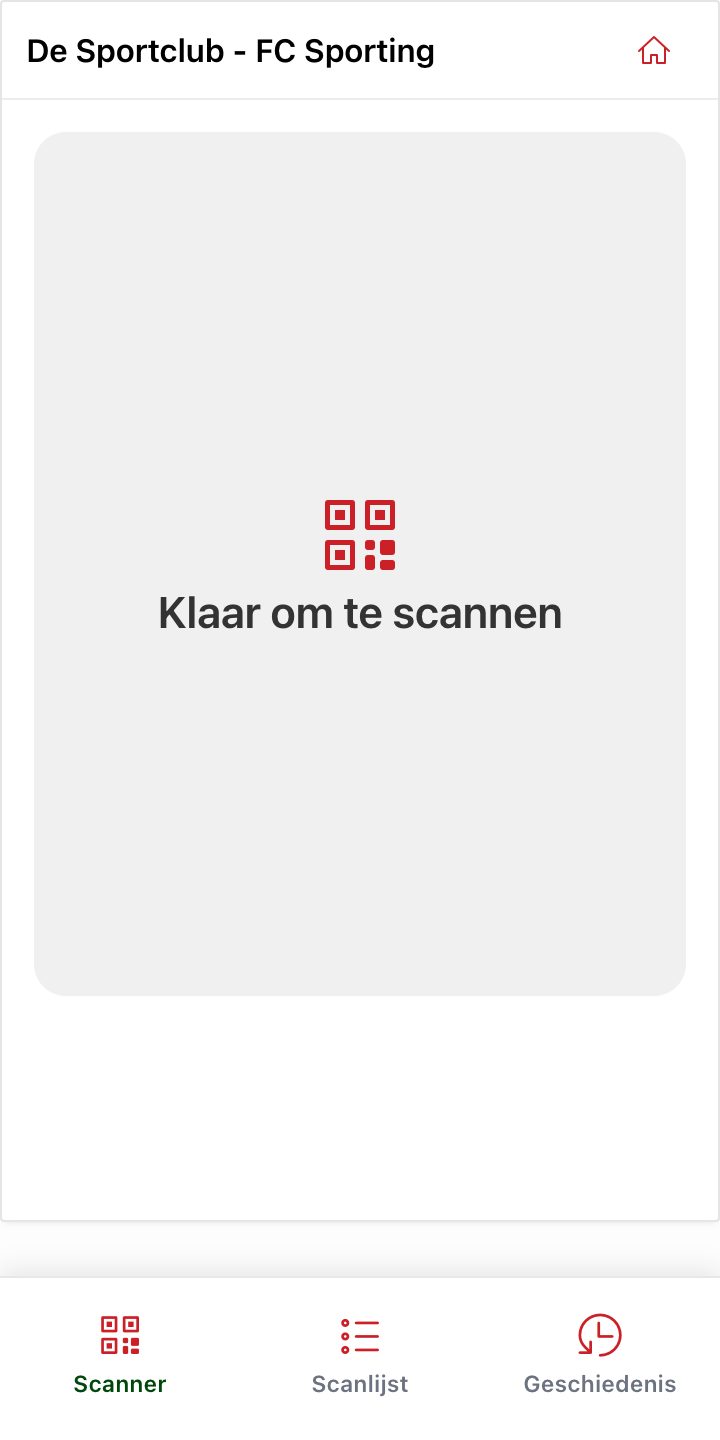
Sign in to the Sunmi Scanner app and choose the event with To event. The device is then ready.
Press the scan button of the device and aim at the QR code. The result fills the screen right away: green with the ticket details, yellow if it has already been used, red if it is not a valid ticket. You can scan the next ticket immediately.
Zebra
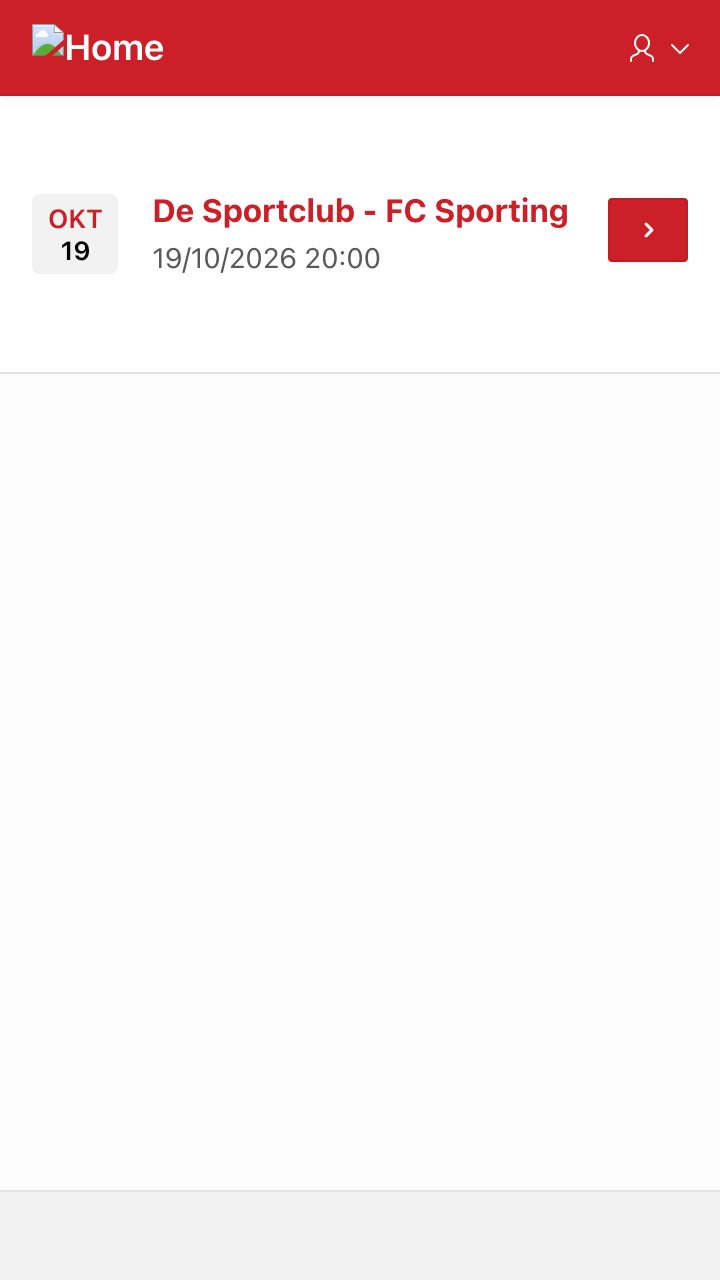
On a Zebra device you use the Zebra Scanner app. You see the upcoming events; only on the day of the event itself can you open it with the arrow on the right.
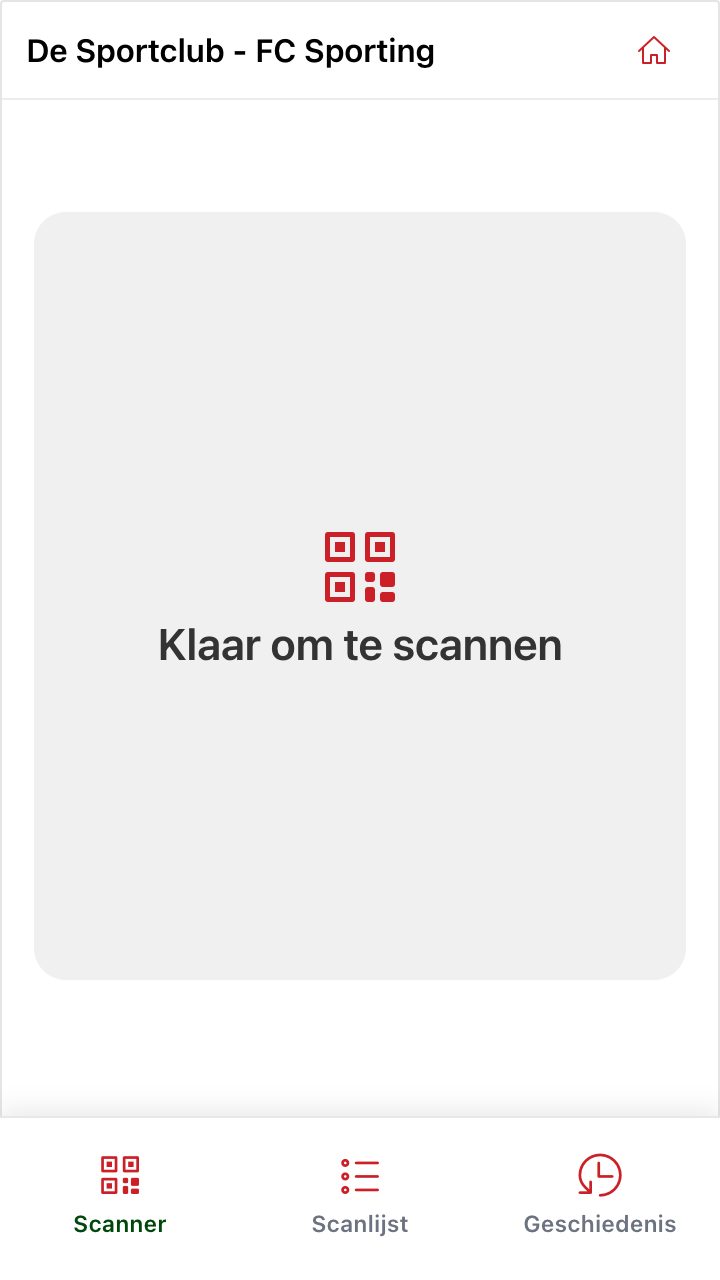
Scanning works as on the Sunmi: press the scan button and the result appears. You find the Scan list and History at the bottom, just like on the other scanners (see Access control with the Scanner).
Did this answer your question?