
Manual / Events & ticketing / Scanning with your phone
Part 7 of 9, Events and ticketing
Scanning with your phone
With the Mobile Scanner you use your phone's camera to scan tickets. Sign in with your back office account.
1. Choose the event

You see the upcoming events with scanning. Tap To event.
2. Scan
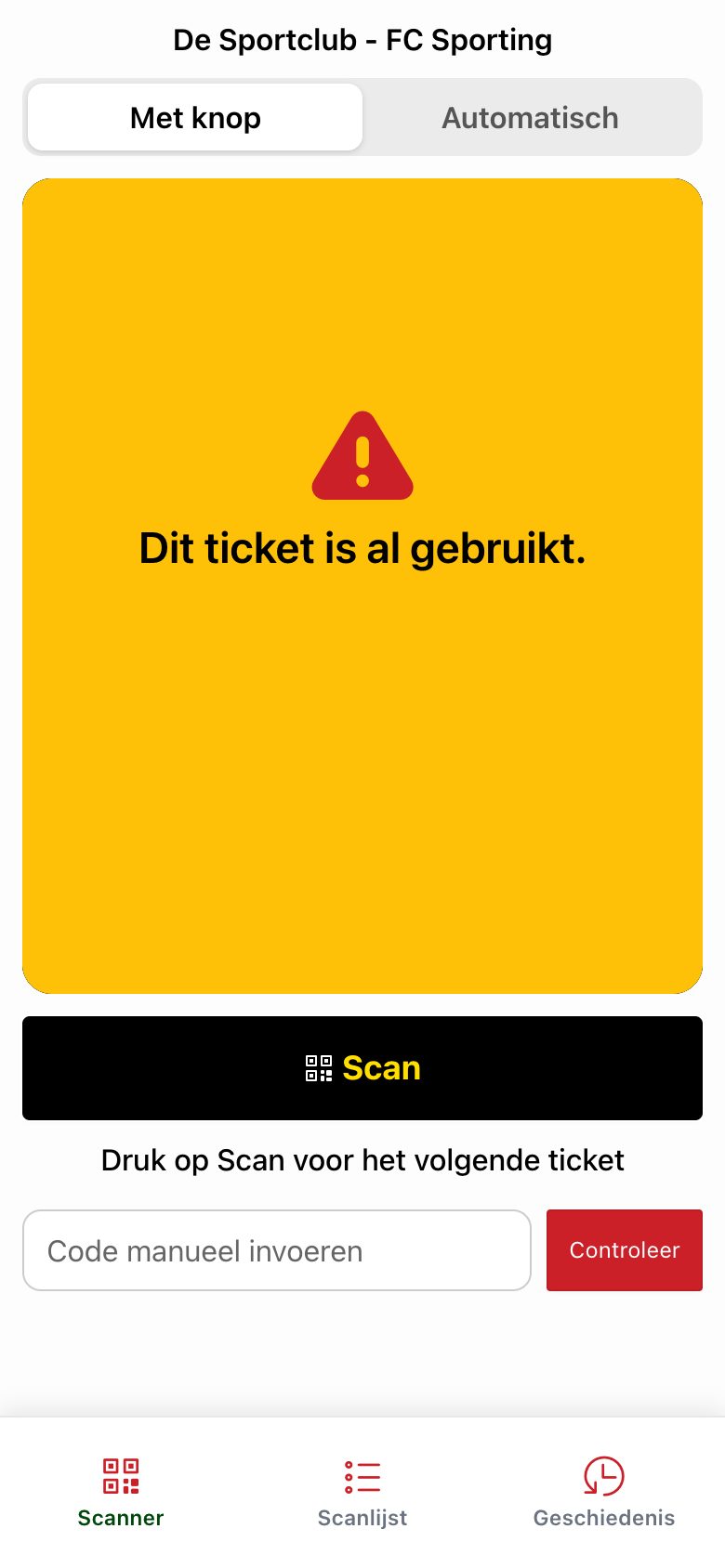
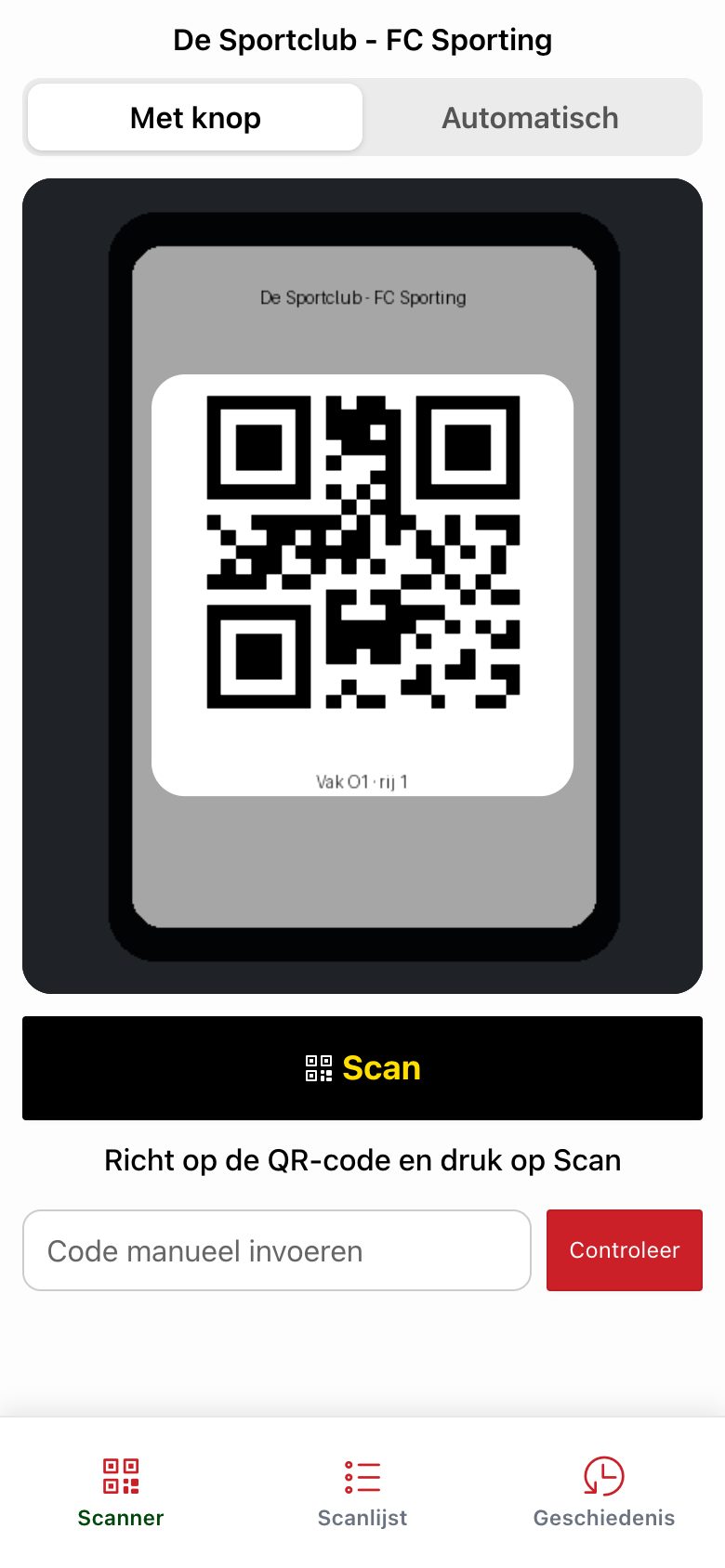
The first time, give the app access to the camera. Choose at the top how you scan:
- With button: aim at the QR code and press Scan. That way you never scan a wrong ticket by accident.
- Automatic: the app scans every QR code that comes into view. Faster at a busy entrance.
The result appears right away in the camera image: green (valid), yellow (already used) or red (not a valid ticket). Then press Scan for the next ticket.
Enter code manually
Is the QR code damaged or the visitor's screen too dark? Type the code below the QR code in the field Enter code manually and tap Check.
← Previous articleAccess control with the ScannerNext article →Scanning with a Sunmi or Zebra handheld scanner
Did this answer your question?
Thanks for your feedback!