
Payment reminders for outstanding invoices
An invoice that is still outstanding after the due date automatically receives a reminder by mail. You set up to three reminders, each with its own timing and its own text. Because Clubwise also knows the payments, through Mollie, Codabox or a manual payment, you follow up invoices, payments and reminders in one system.
Setting up reminders
- Go to Settings, Finance, tab Email.
- In the block Mail templates choose the template for reminder 1, 2 and 3. They apply to the automatic reminders and to Send reminders. If you choose nothing, Clubwise uses the default template of that reminder.
- Do you want them to go out automatically? Then in the block Payment reminders switch on Automatic reminder and fill in the number of days after the due date for each reminder. A negative number sends the reminder before the due date. A reminder without a number of days is not sent automatically.
- Save. The automatic reminders go out every day from 9 a.m.
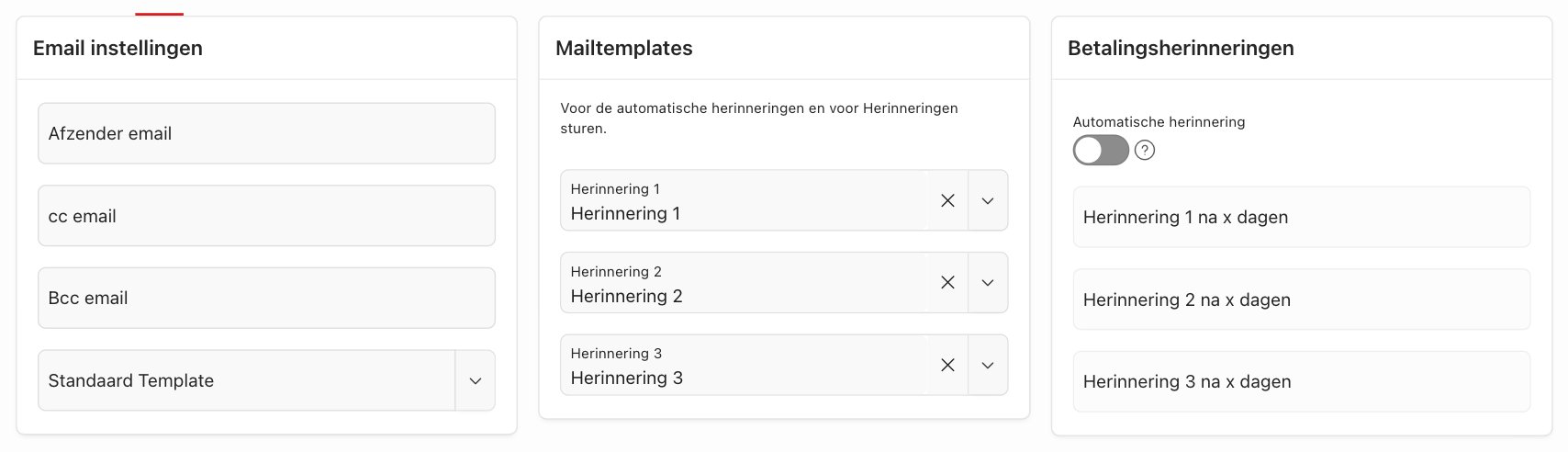
An example: reminder 1 after 7 days, reminder 2 after 21 days and reminder 3 after 35 days. Whoever pays after the first reminder no longer receives the next one.
The reminders go out with the same sender and the same cc and bcc as your invoice mails. You set those on the same page in the e-mail settings.
Automatic reminders apply from the moment you switch them on. An invoice whose term had already expired before that does not get a series of reminders after all, so nobody suddenly receives several at once. You remind those invoices yourself with Send reminders, see below.
Sending reminders for several invoices yourself
With Send reminders you send a reminder in one go for all overdue invoices you choose. This also works when the automatic reminders are switched off.
You open the list in two ways.
1. Via Home
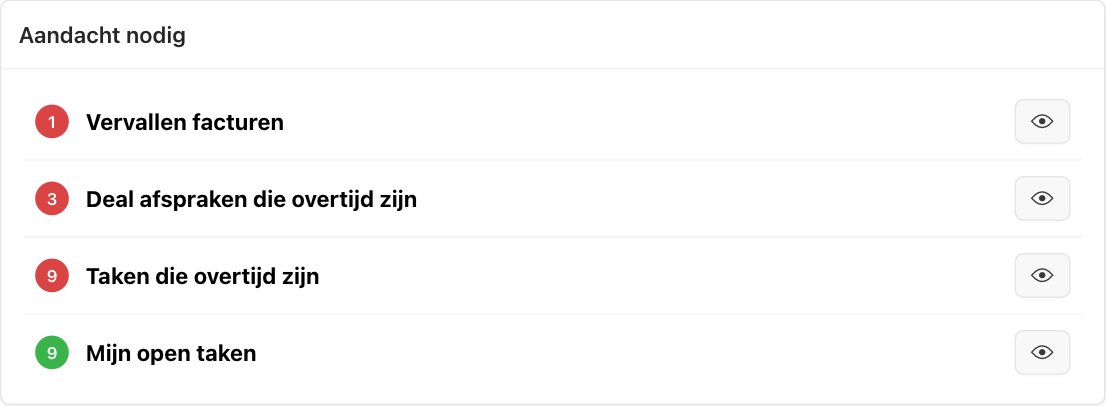
On Home, under Attention needed: click the eye next to Overdue invoices. The number is the number of invoices in the list.
2. Via Finance, Income
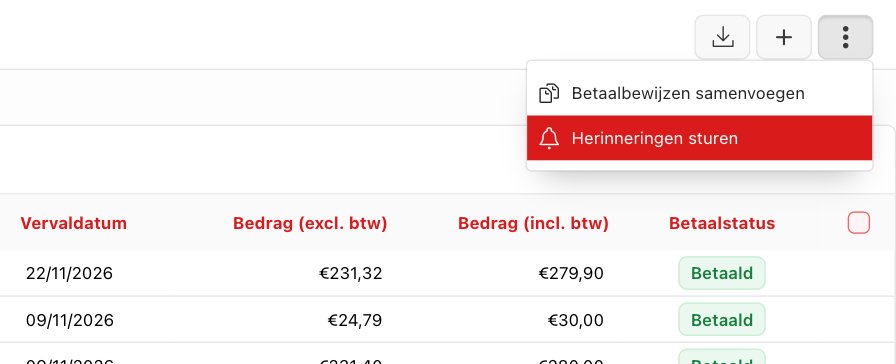
Click the button with the three dots at the top right and choose Send reminders. You see this option if you are allowed to create invoices.
The list
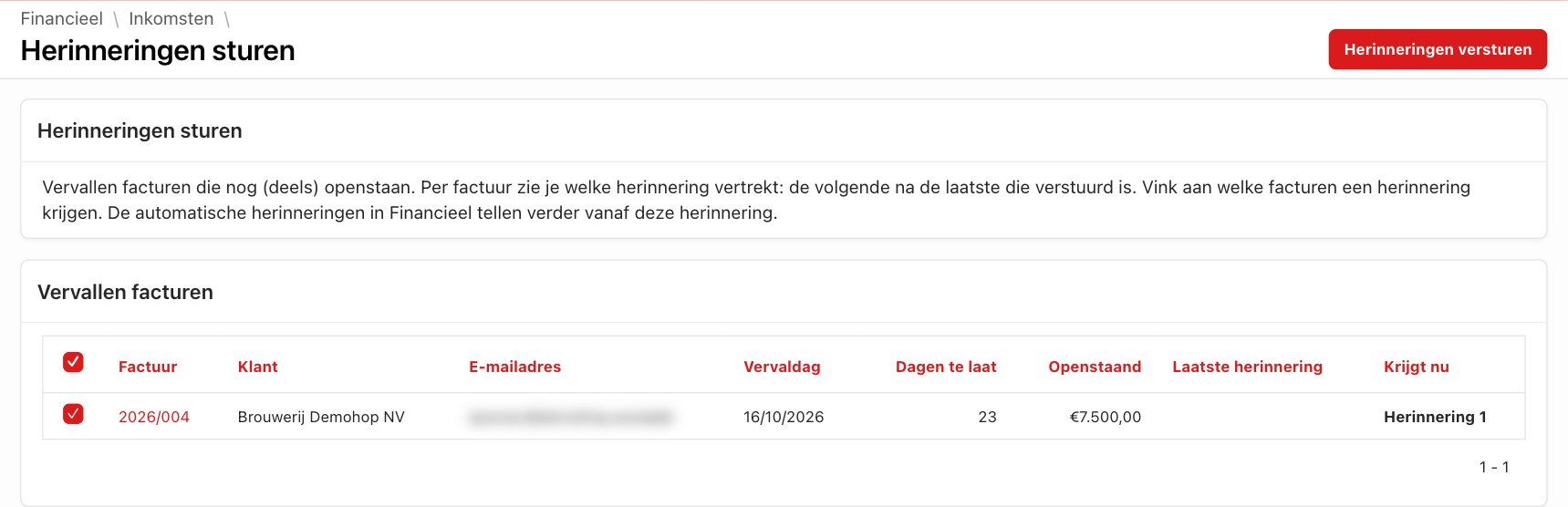
- You see all overdue invoices that are still (partly) unpaid, with the customer, the e-mail address, the due date, the number of days overdue, the outstanding amount and the last reminder.
- The column Will receive shows which reminder will be sent: the next one after the last reminder sent. An invoice without a reminder gets reminder 1, after reminder 3 reminder 3 is sent again.
- If an invoice cannot get a reminder, the reason is shown in red and you cannot tick it. For example no e-mail address, a contact set to No invoice reminders, or a reminder already sent today.
- Tick the invoices that should get a reminder and click Send reminders. The reminders go out in the background, one by one. So you can keep working right away.
- Refresh the page to follow the progress. As long as an invoice is waiting, it shows Being sent. After that the reminder appears under Last reminder. You send at most 200 reminders at a time.
The automatic reminders then continue counting. If you sent reminder 1 for an invoice yourself, Clubwise later automatically sends reminder 2 at the moment you set in Finance.
Adjusting the text
The text of each reminder is in a mail template: invoice reminder 1, 2 and 3. You adjust them under Settings, E-mails, per language and with tags for the invoice details. A person receives the reminder in their own language if your club has a template in that language. A company receives your club's default language. See E-mails: adjusting your mail templates.
Which invoices get a reminder?
- Invoices with the status unpaid or partly paid, with an invoice number, an amount and a due date. Never credit notes or paid invoices.
- At most one reminder per invoice per day, and never an earlier reminder after a later one.
- For a company, the mail goes to the invoicing e-mail address, otherwise to the general e-mail address. For a person, to their e-mail address. Without an e-mail address nothing is sent: add it on the contact.
A contact that should never receive a reminder, for example a partner with a fixed payment arrangement, you set to No invoice reminders. You find that switch on the record of the company or the person.
Checking the mail traffic of an invoice
For each invoice you see which mails were sent, and whether they arrived.
- Open the invoice under Finance, Income.
- The tab History shows the timeline: created, every mail sent (the invoice itself and every reminder), every payment and the sending to Peppol.
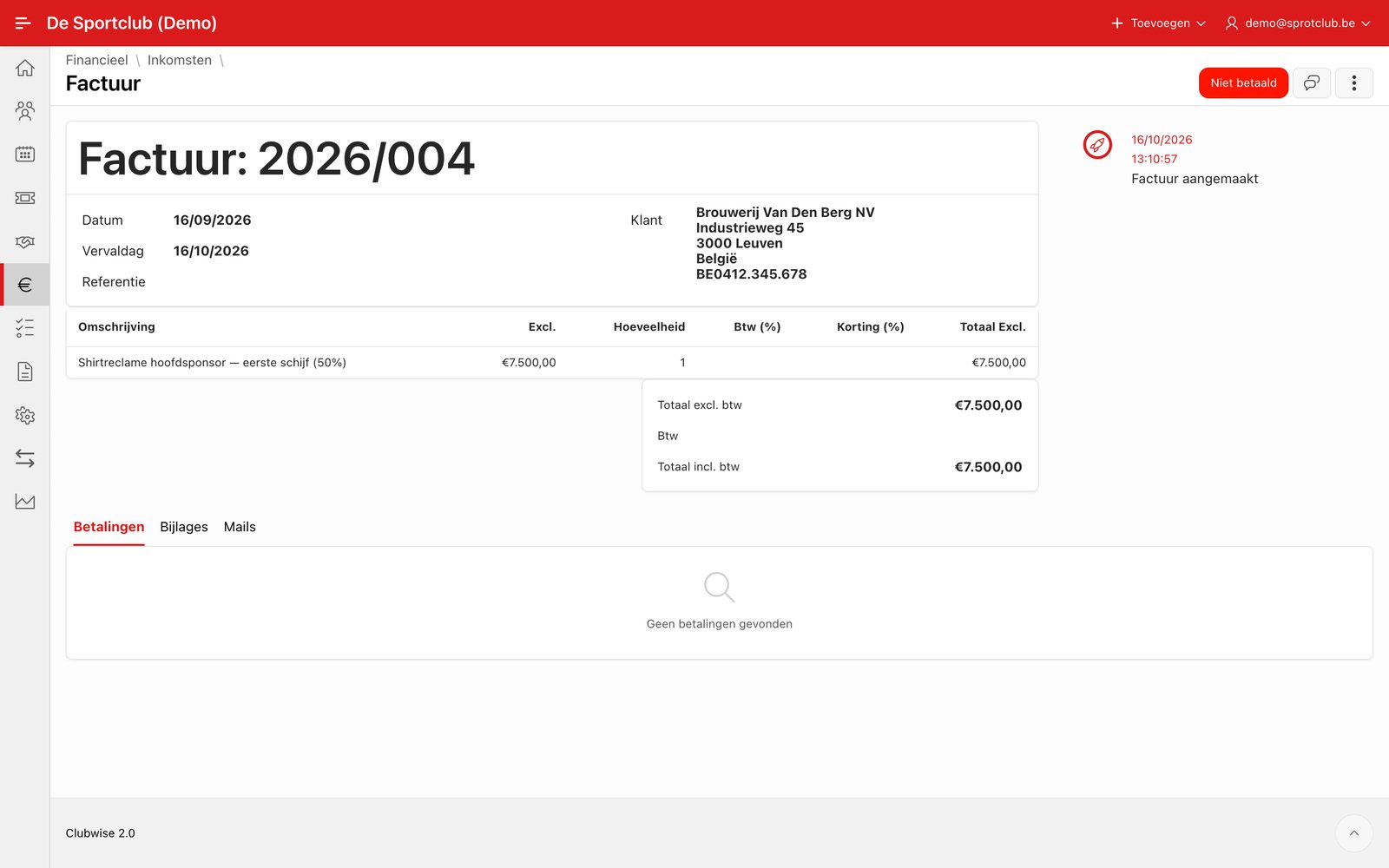
Invoice detail with the timeline on the right: created, sent, paid or sent to Peppol. - The tab Mails shows every mail with the subject, the recipient and the time. The subject tells you which reminder went to which address.
- Click the clock icon next to a mail for the delivery status.
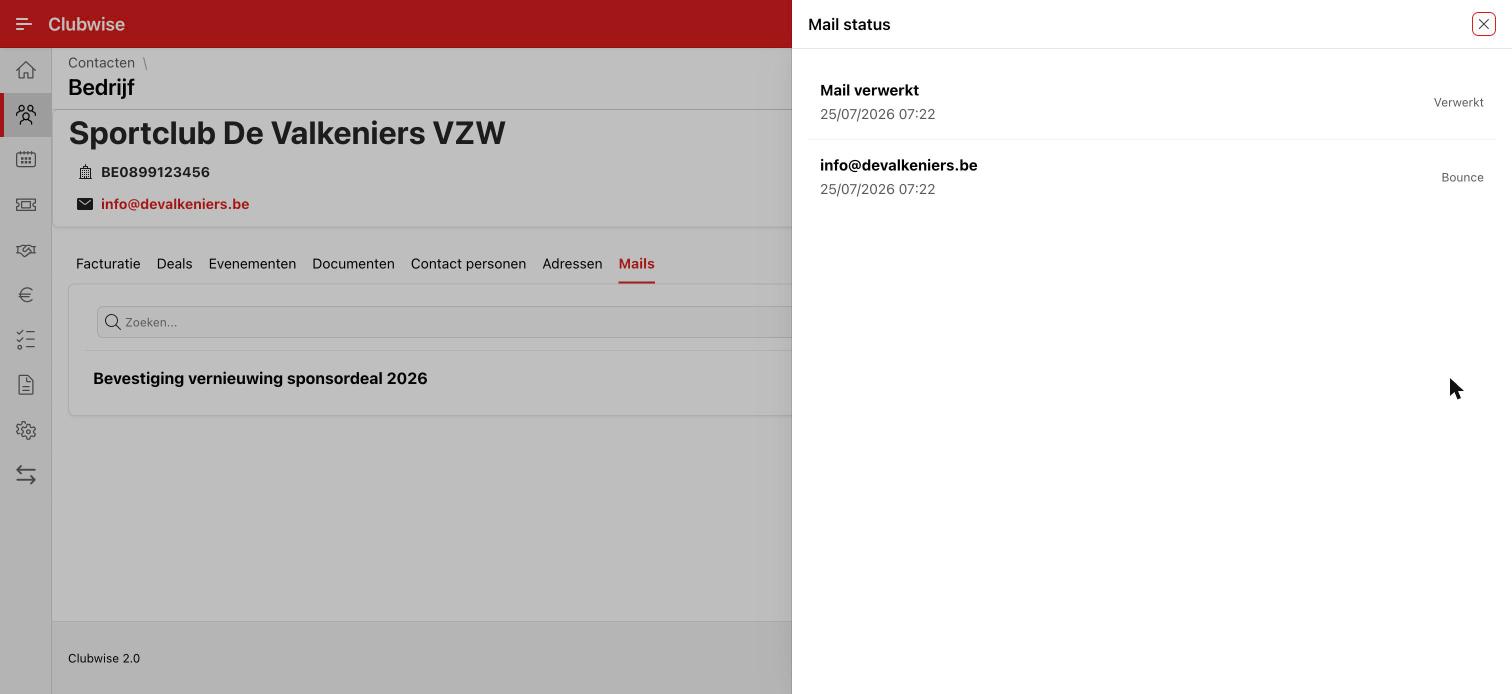
The delivery status of a mail, per recipient.
| Status | What does it mean? |
|---|---|
| Processed | Clubwise handed the mail to the mail server. Not delivered yet. |
| Delivered | The mail arrived at the recipient's mail server. |
| Opened | The recipient opened the mail. This is an indication: not every mail program reports it. |
| Clicked | The recipient clicked a link in the mail. |
| Bounce | The mail could not be delivered, for example because of a wrong or old e-mail address. Correct the e-mail address on the contact. |
| Rejected | The recipient's mail server refused the mail. |
| Spam | The recipient marked the mail as spam. |
All mails to one customer, across all their invoices, are in the tab Mails of the contact. See Viewing sent mails and mail history.
If a payment comes in after a reminder, the invoice is set to paid and the reminders stop automatically. With Codabox this happens automatically every day.
Did this answer your question?